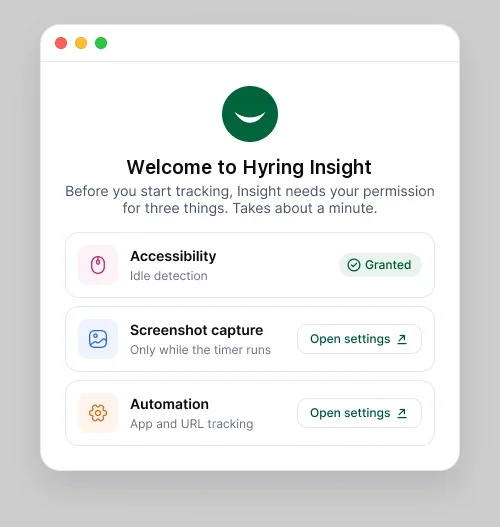
The first time you open Hyring Insight, a Welcome to Hyring Insight screen lists the permissions it needs. Choose Open settings next to each one to grant it. The exact list depends on your operating system.
| Permission | Used for | Good to know |
|---|---|---|
| Accessibility | Idle detection and activity | Lets Hyring Insight notice keyboard and mouse input. It never records what you type. |
| Screenshot capture | Screenshots | Called Screen Recording in macOS settings. Hyring Insight only takes still screenshots, never video, and only while the timer runs. |
| Automation | App and URL tracking | Lets Hyring Insight see which app and website you're using. |
If you skip one, that part of your record stays empty.
Change them later
- macOS: go to System Settings › Privacy & Security, then choose the permission.
- Windows: go to Settings › Privacy & security.
- Linux: check your desktop's privacy or security settings.