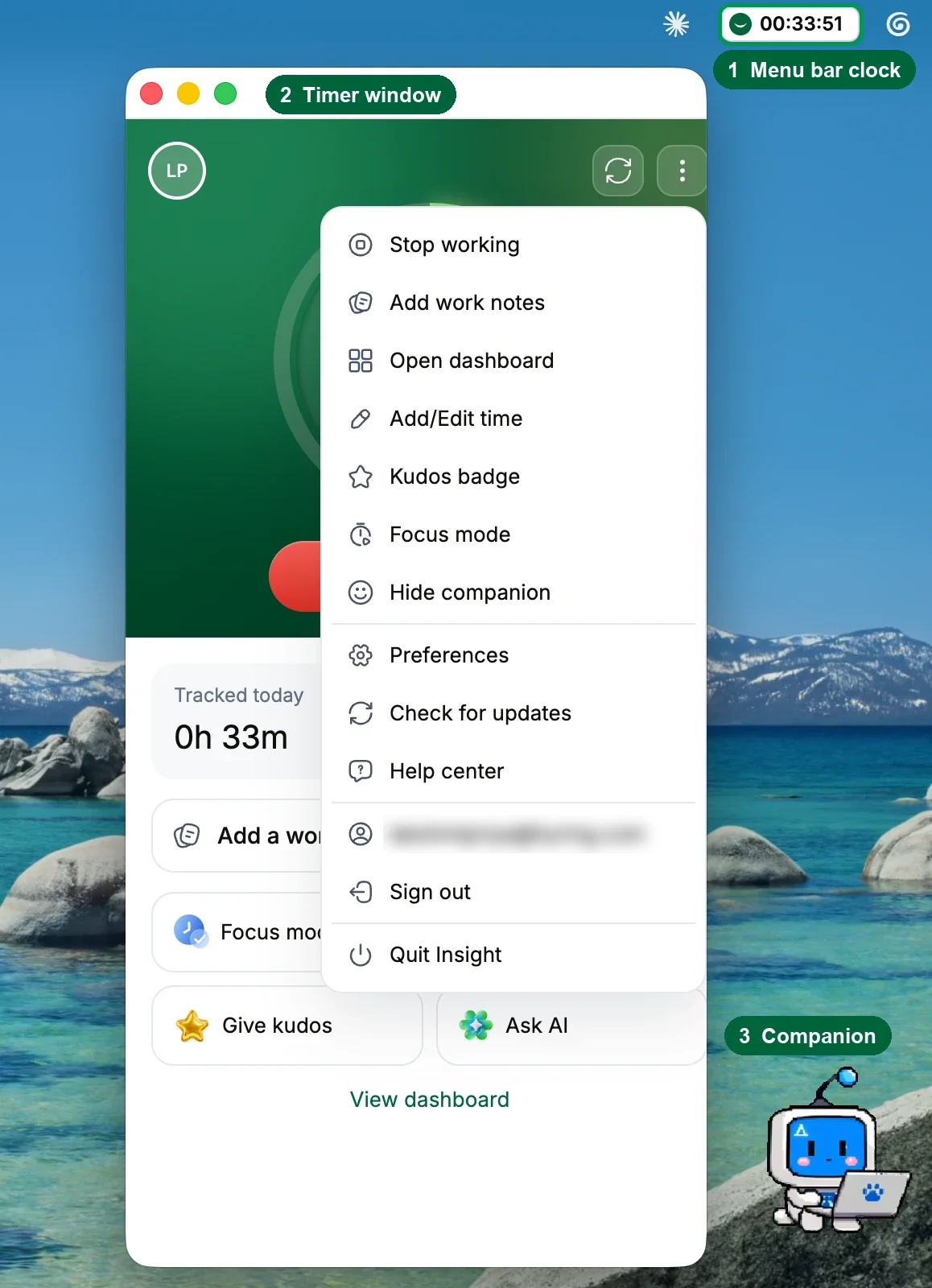
Hyring Insight has three parts on your computer: the timer window, the menu bar or tray clock, and an optional companion, a small always-on-top timer with a character.
The timer window
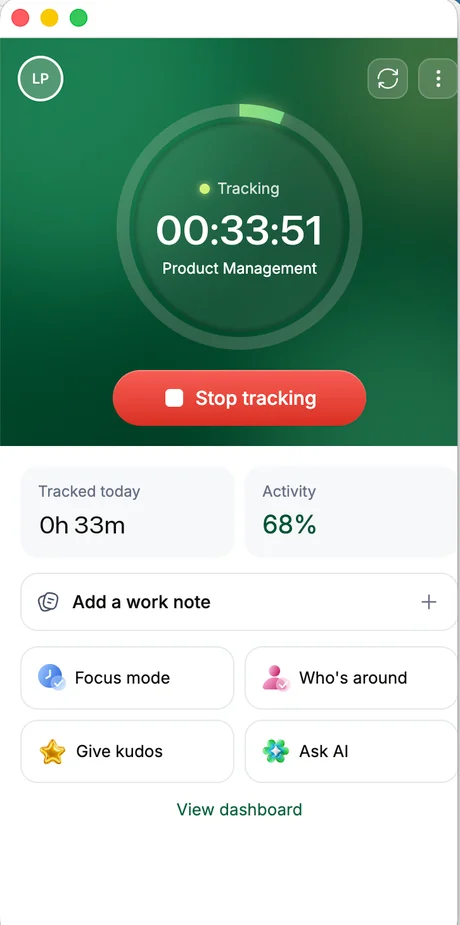
- Start tracking and Stop tracking, with Tracked today and Activity.
- Add a work note to explain anything the timer can't see.
- Quick actions: Focus mode, Who's around, Give kudos and Ask AI.
- View dashboard opens the web portal.
The ⋮ menu
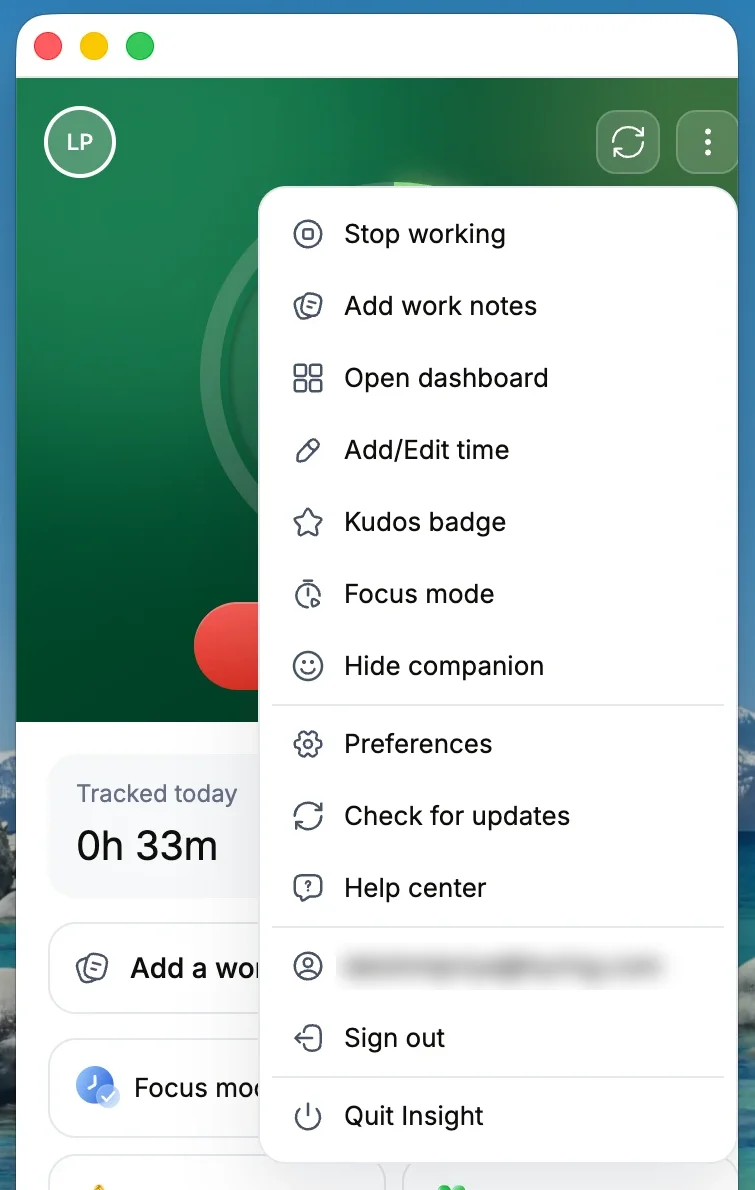
The ⋮ menu holds everything else, such as work notes, adding or editing time, focus mode, your companion, preferences, updates, help and signing out.
The menu bar or tray clock
Shows the timer counting, so you can tell you're tracking without opening anything. Click it for shortcuts such as Open Hyring Insight and Focus mode.
The companion
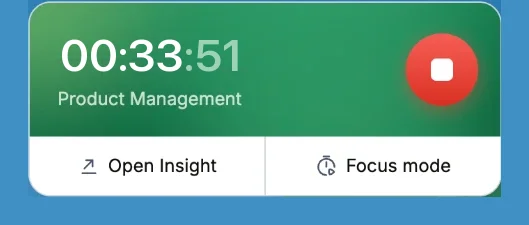
Turn on Show companion to swap the full window for a compact timer, with a character, that stays on top. See What is the companion, and how do I change it?.
Closing the window doesn't stop the timer. Stop tracking does, and so does Quit Hyring Insight.