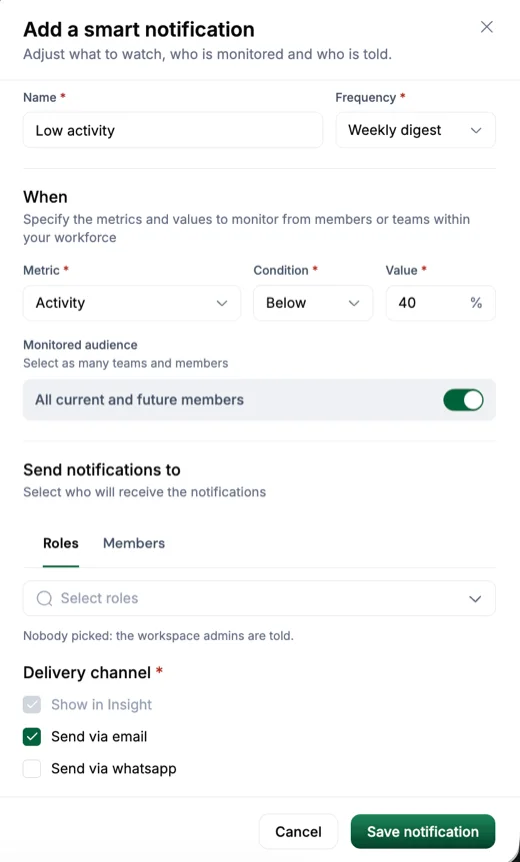
Go to Settings › Notifications › Smart notifications and add one. Choose what to watch, who is monitored and who is told.
- Name it and choose a Frequency: Daily digest, Weekly digest or Monthly digest. This sets how often Hyring Insight checks, and when the notification arrives.
- Under When, choose the Metric (activity, tracked hours, idle time, manual time, meeting time or unusual activity), a Condition (Above or Below) and a Value. For example, activity below 40%.
- Pick the Monitored audience: leave All current and future members on, or turn it off and select teams and members.
- Under Send notifications to, pick who is told by Roles or Members. If you pick nobody, the workspace admins are told.
- Choose a Delivery channel: Show in Hyring Insight is always on; add Send via email or Send via WhatsApp.
- Choose Save notification.
A weekly digest suits most alerts: it shows a pattern without a message every day.