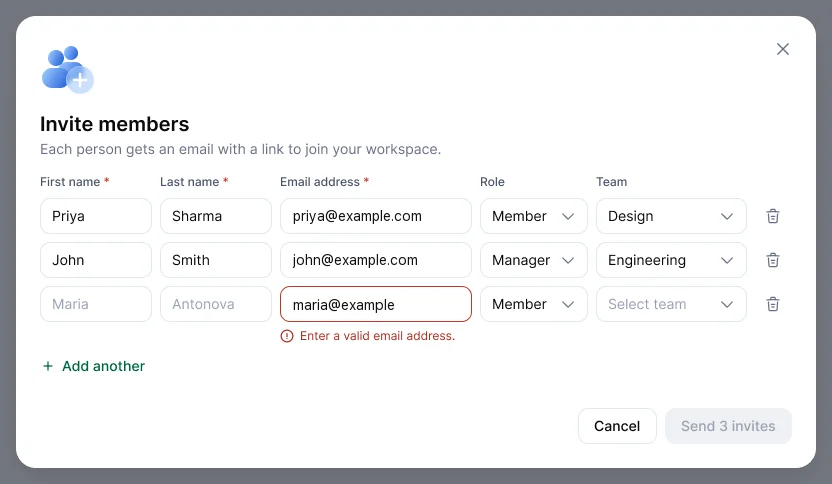
Go to People, choose Invite members, and add each person's first name, last name, email, role and team. Each person gets an invite email from Hyring Insight.
Invite several people at once
Use Add another to add more rows, then choose Send invites. Hyring Insight flags any invalid email address before anything is sent.
Follow up on invites
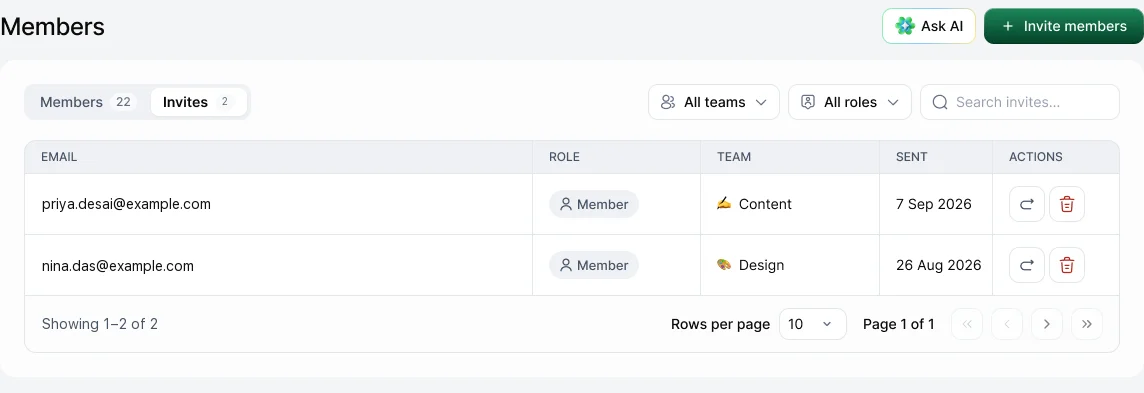
Open the Invites tab in People. Each pending invite has buttons to resend or delete it.
Before you invite
- Create the team first, so each person lands in the right place.
- Tell people about Hyring Insight first. See How do I tell my team about Hyring Insight before it starts?. They also see what Hyring Insight records on the invite page before they sign in.
- To let someone sign in before they can track, switch off Time tracking for them in Settings › Member › Member defaults.
Who counts as a paid user
Everyone you invite, including admins and managers. On a paid plan, you pay for each new seat when you send the invite, and the invite email goes out once the payment is done. See Who counts as a paid user?.